
WordPress MCP Server: Manage Your Blog with Claude AI
WordPress MCP Server: Manage Your Blog with Claude AI
By Emily Carter
Most WordPress owners already know the feeling. A draft sits half-finished for three days, a stack of comments waits in the moderation queue, and a batch of product photos still needs alt text before anyone can publish them. None of these tasks is hard on its own. Together they eat the hours that should go to thinking about what the blog is actually for. Connecting a WordPress site to a large language model through the Model Context Protocol (MCP) is one way to change that arithmetic, and it is worth understanding in detail before deciding whether it fits your workflow. Services such as Visit site aim to make that connection without requiring you to build the bridge yourself, but the value of any such setup depends on how carefully it is configured.
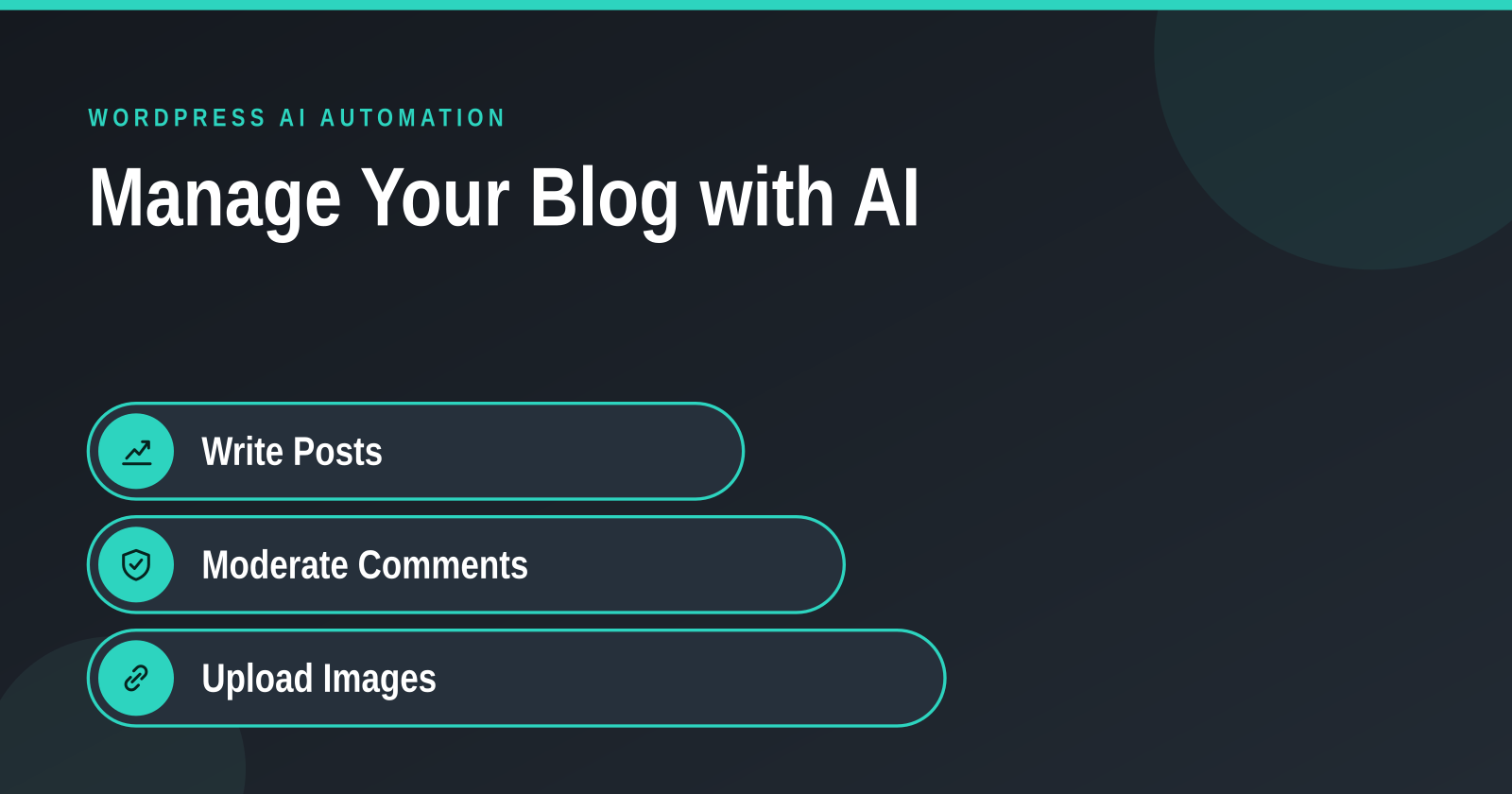
The Model Context Protocol is an open standard that lets an AI assistant call external tools and read external data through a defined interface. Instead of copying text between a chat window and a browser tab, the assistant can ask a server to perform a concrete action, such as creating a draft post or listing pending comments, and receive a structured answer. For content operations, this shifts the bottleneck. When writing a first draft takes seconds, the real constraint becomes governance: who is allowed to change what, which changes need human sign-off, and how you undo a mistake. A blog that could be managed entirely from a conversation is also a blog where a careless instruction can publish something unreviewed at scale. So the important question is no longer whether the assistant can write, but whether your process can contain what it writes.
Start with a dedicated low-privilege account, test on staging, keep a human in charge of publishing, and measure what changes before you commit
- It does not perform fact-checking, since the assistant can generate convincing errors and only a person with access to primary sources can catch them
- It is a poor fit when your site has strict compliance requirements that you cannot document, when you cannot restrict publishing to drafts, or when you lack the time to review what the assistant produces
- In the third week, add comment moderation with the three-category workflow, sampling decisions daily and tracking the rejection rate against spam levels
- The risks are real and manageable, but only if you treat permissions, logs, and review as part of the system rather than as afterthoughts
The people who benefit most from this kind of connection tend to fall into a few groups. Solo bloggers gain the most time back, because they perform every role themselves and routine maintenance often displaces the writing they set out to do. Content teams benefit differently: they gain a shared interface where an editor can ask for a revision or a comment triage without waiting for a developer or handing over dashboard access. Agencies managing several client sites can standardize routine operations, though they carry an added responsibility for credential hygiene. Sites with heavy comment volume, such as news blogs, recipe sites, or community forums, often feel the moderation load most sharply, because the queue grows faster than anyone can clear it by hand. Each of these groups has different risk tolerances, and the right configuration differs accordingly.
By the end of this article you should be able to answer several practical questions for your own site. You should know how the connection is structured, which actions can safely be exposed to an assistant, and which should stay behind a manual step. You should be able to evaluate a setup against concrete criteria rather than marketing claims: hosting requirements, permission scoping, audit trails, client compatibility, and vendor data practices. You should also be able to plan a first setup that starts with low-risk operations and expands only after you have verified the results. Finally, you should have a clear sense of whether this approach suits your situation or whether a plugin-based workflow or a manual process serves you better.
How a WordPress MCP server connection works
The architecture has three layers, and understanding each one makes troubleshooting far easier. The first layer is the AI client: Claude, ChatGPT, or another MCP-capable tool where you type instructions. The second layer is the MCP server, a small program that translates the assistant’s tool calls into requests the rest of the system understands. The third layer is WordPress itself, which exposes its functions through the REST API or through a plugin that adds custom endpoints. When you ask the assistant to draft a post, it does not write into your database directly. It sends a structured request through the MCP server, which in turn calls the WordPress endpoint responsible for creating content, authenticated with credentials you configured in advance.
This layering matters because each boundary is a place where permissions can be enforced or accidentally bypassed. The REST API has its own permission model, based on WordPress user roles and capabilities. An Author can create and edit their own posts but cannot publish site-wide changes; an Administrator can do almost anything. Whatever the MCP server exposes is limited by what the authenticated user is allowed to do in WordPress. That is a useful safety property: if you connect the server using a low-privilege account, the assistant inherits those limits. The danger arises when people connect using an administrator account for convenience, because then every tool the server exposes operates with full site authority.
The set of actions you can expose typically falls into several categories. Content actions include creating drafts, editing existing posts, and in some configurations publishing them. Comment actions include listing pending comments, approving, rejecting, marking as spam, or replying. Media actions cover uploading images and attaching them to posts, along with editing metadata such as titles, captions, and alt text. Metadata actions can touch categories, tags, slugs, and excerpts. Each category carries a different risk profile. Creating a draft is reversible and invisible to readers; publishing is immediate and public; deleting a comment may be permanent depending on your trash settings. A well-designed connection makes these distinctions explicit rather than exposing everything as a single undifferentiated capability.
Authentication is where many setups succeed or fail on security. WordPress supports application passwords, which are credentials generated for a specific user and can be revoked without changing that user’s login password. Some configurations use OAuth or plugin-managed tokens. The critical question is where these credentials live. If they are stored in a configuration file on a shared machine, pasted into a chat transcript, or kept in a client tool that syncs to a cloud account, the exposure surface grows. A sound practice is to create a dedicated user for the assistant, assign it the minimum role needed, generate a separate application password for it, and record where that credential is stored so it can be revoked quickly if something goes wrong.
Choosing a setup: criteria that separate reliable options from risky ones
Start with the environment, because a connection that works on paper can fail on your actual hosting. The REST API must be reachable from the outside network, which some security plugins and managed hosts restrict by default. HTTPS is effectively required, since credentials sent over plain HTTP can be intercepted. Your PHP version needs to meet the minimum the MCP layer supports, and outdated PHP is common on older shared hosting. Before committing, test whether the endpoint responds from outside your own network, because many failed setups trace back to a firewall rule or a hosting-level block on the wp-json path rather than to anything in the connection itself.
Permission scoping is the next filter, and it separates thoughtful designs from careless ones. A reliable setup lets you distinguish read-only access from write access, so an assistant can summarize comments without the ability to delete them. It should also allow publishing to be restricted, so that the assistant can only create drafts and a human presses the final button. Ask whether the vendor’s documentation describes exactly which endpoints are exposed and under which role. If the answer is vague, assume that the scope is broader than you would choose. Scoping works best when it is enforced by WordPress capabilities rather than by a promise in a configuration screen, because capabilities are checked on every request.
Audit and rollback determine whether a mistake is a minor correction or a crisis. WordPress already keeps revision history for posts, which means a bad AI edit to a published article can usually be reverted in a few clicks. Comment actions are harder to reverse if the trash is emptied, so check whether the connection logs what the assistant did and when. A logging trail that records the tool called, the object affected, and the user account used is essential for diagnosing problems. Without it, you may discover that forty comments were rejected overnight and have no way to tell whether the assistant or a human made the decision.
Client compatibility is less uniform than the marketing suggests. Claude, ChatGPT, and other MCP-capable tools all support tool calling, but they differ in how they present tool results, how they handle multi-step operations, and how much they ask for confirmation before acting. Some clients pause and show you each proposed action; others execute a sequence without stopping. For a blog where a wrong publish is costly, a client that requests confirmation for write operations is safer than one that acts silently. Test each client with a harmless instruction, such as listing your three most recent drafts, and observe how it reports the result before relying on it for anything consequential.
Vendor transparency is the criterion most often overlooked. When you connect a blog to an assistant, your content, your comments, and sometimes your readers’ personal information pass through systems you do not control. You need to know where prompts and content are processed, whether they are retained, and for how long. Check whether the terms grant the vendor any right to use your content, and whether comments containing names or email addresses are stored by the middleware. These questions matter more for blogs with commenters in regions covered by strict data protection rules, where the data handling chain needs to be documented.
Cost deserves a careful reading beyond the headline offer. A first month free is a useful evaluation window, but find out what the trial includes: the number of operations, the connected sites, the available tools, and whether the assistant’s own subscription is separate. Identify what triggers paid usage, whether it is a call volume, a site count, or a feature tier. Many people discover a cost only after the trial ends, when their automated comment moderation has become part of their routine. Write down the expected monthly usage before you start, so the comparison at the end of the trial is grounded in numbers you actually recorded.
Step-by-step implementation for a production blog
Preparation matters more than speed here. Take a full backup of your WordPress database and files before changing anything, and confirm that you can restore it. If your host offers staging, use it: a copy of the live site where you can test the connection without risking readers. If staging is unavailable, plan the first tests for a low-traffic period and keep the scope narrow. Create a dedicated user account for the assistant with the lowest role that supports the tasks you want, typically Author or Editor depending on whether it needs to manage comments. Generate an application password for that account and store it in a password manager, not in a document you might share.
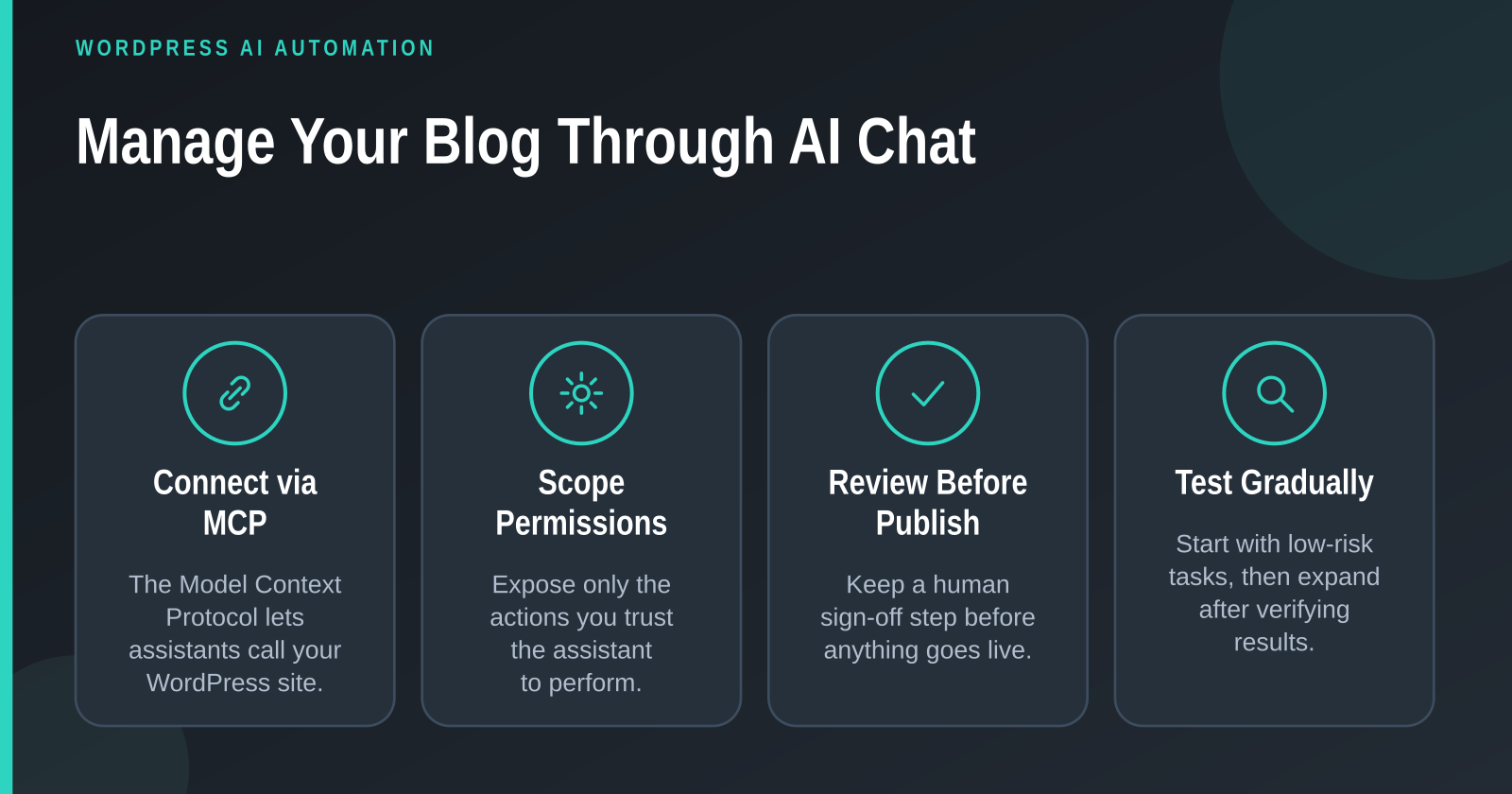
Connect the MCP server and verify the first operation with something that cannot harm readers. Ask the assistant to create a draft with a clearly marked title such as a test phrase, then confirm in the WordPress dashboard that the draft exists, that it is unpublished, and that it is attributed to the dedicated account. Next, ask it to read a single pending comment without acting on it. Only after both checks succeed should you try a write operation on a test object. Delete the test draft afterward and confirm that it disappears from the trash as well. This sequence proves the connection, the permissions, and the logging in a few minutes.
Establish a review workflow before the assistant touches live content. Decide which actions require human approval. A common and sensible division is that drafting, tagging, alt text generation, and reading are automatic, while publishing, deleting, and bulk comment rejection require a person to confirm. Write this rule down and make it visible to everyone who uses the connection, because an informal understanding tends to erode under deadline pressure. If you run a team, assign a named reviewer for publishing so that no article goes live without someone accountable for it.
Estimate setup time honestly, because the variance is large. A technical owner comfortable with WordPress administration, application passwords, and a client configuration file might complete the connection and first tests in an afternoon. A non-technical marketer will usually need longer, mostly because of hosting issues such as blocked endpoints, PHP version mismatches, or confusion over where credentials belong. The biggest time sink is rarely the connection itself; it is the troubleshooting of the environment around it. Budget extra time for a hosting conversation if your provider restricts the REST API, and expect the first week to involve tuning the permission scope as you discover which actions you actually want.
Editorial and moderation workflows in practice
Drafting through conversation works best when you treat the assistant as a fast collaborator rather than an author. Give it a brief that states the audience, the purpose of the post, the points that must appear, and the tone you want. Ask for an outline first, review it, and then request the full draft section by section. This keeps you in control of structure and makes the output easier to check. When revising, be specific about what to change: asking for a shorter introduction or a more concrete example produces better results than asking for a general improvement. Keep a short style note in your instructions describing your editorial voice, sentence length, and the phrases you avoid, so that the output does not drift toward generic language over time.
Image handling involves three separate concerns: uploading, describing, and licensing. Uploading through the connection is straightforward, and the assistant can attach the image to a draft and suggest a filename. Alt text generation is one of the more useful automations, because descriptive alt text is tedious to write for large libraries. Review what the assistant produces, since it may describe an image inaccurately or include details that are not visible. Licensing is the step that cannot be delegated to the tool. Confirm that you have the right to use each image, record the source, and check any attribution requirements before the media goes live. An assistant has no way to verify the rights status of a photograph, so this check remains entirely with you. Anyone weighing this setup for the first time can visit site to see how the connection is configured and what the server actually exposes to Claude.
Comment moderation at scale is where the connection can save the most time, and where it can do the most damage if left unsupervised. A workable approach divides comments into three categories. The first is clearly acceptable content, such as a relevant question or a thoughtful reply, which can be approved after a quick check. The second is clearly unacceptable content, such as obvious spam, a link farm, or abusive language, which can be rejected or marked as spam. The third, and most important, is the uncertain middle: sarcasm, a complaint that may be fair, a comment in a language you do not read well, or anything touching on a sensitive personal matter. These should be escalated to a human rather than decided by the assistant. The moderation log is what lets you audit the first two categories and catch any systematic errors.
Measuring output quality requires a checklist you apply consistently rather than a general impression. For posts, check factual claims against primary sources, confirm that every link resolves and points where you intended, verify that the headings reflect the content, and read the piece aloud to catch unnatural rhythm. For moderation, sample a random selection of decisions each week and compare them against your own judgment; a rejection rate that climbs without a corresponding rise in spam is a warning sign that the assistant is becoming too aggressive. Track how many AI-assisted drafts require big rewriting, since a high rate suggests the prompts or the brief need work. These measurements turn a vague sense that the tool is helping into evidence you can act on.
Common mistakes and how to avoid them
Granting publish rights to an account with administrator privileges is the most consequential error, because it removes the safety boundary that WordPress would otherwise enforce. An administrator account can change themes, install plugins, and modify users, so a misconfigured or manipulated assistant could do far more than publish an article. Use a dedicated account with the lowest role that supports your tasks, and reserve administrator access for the human who maintains the site.
Skipping staging and discovering errors only on the live site is a close second. Every connection has edge cases: a plugin that conflicts with the endpoint, a theme that renders an AI-generated excerpt badly, or a permission that behaves differently than documented. A staging copy lets you find these problems without readers noticing. If staging is impossible, at least test on a draft or a private post and verify the rendered result on the front end before making it public.
Letting the assistant moderate comments without a reviewable log leads to false rejections and lost community trust, which can be hard to recover. A proper reader who is rejected by mistake may never return, and they will rarely tell you why. Keep the log, sample decisions regularly, and be prepared to restore wrongly rejected comments from the trash. Reversibility is the safeguard that makes automated moderation tolerable.
Over-trusting generated facts, links, and image rights creates problems that surface long after publication. AI systems can state plausible but incorrect figures, cite sources that do not exist, or insert links to pages that have moved. Every factual claim and every URL in a generated post needs verification against its origin. Image rights are an even clearer case: the assistant cannot know whether a photograph is licensed for your use, so treat that determination as entirely your responsibility.
Search and quality risks deserve attention because mass-produced, near-duplicate content can weaken how search engines evaluate a site. Thin posts that restate common information without adding anything specific tend to underperform, and a large batch of similar articles can dilute the signals that tell search engines what your site is known for. Keep the editorial standard high, add original observations and first-hand detail, and avoid publishing a series of templated pieces that differ only in their keywords. The aim is to use the connection to improve the quality of your work, not to multiply its volume.

Failing to revoke credentials when a team member leaves or a client is offboarded is a security gap that is easy to overlook. An application password tied to a former collaborator’s account can continue to work until someone removes it. Build offboarding into your routine: when someone leaves, revoke their tokens, rotate any shared credentials, and review the logs for recent activity. For agencies, keep a record of which credentials belong to which client so that a client departure triggers a complete and verifiable cleanup.
What the service solves for its users: task-level outcomes
At the task level, a connection of this kind removes the need to switch between a chat window and the WordPress dashboard for routine work. You can describe a draft, ask for a revision, and have the result waiting in your drafts folder without logging into the admin screens. For writers who think in conversation, this keeps the momentum of an idea from breaking at the moment of publishing. The benefit is largest when the tasks are repetitive and well defined, because those are the ones an assistant handles reliably.
Handling comment queues through conversational commands is the second concrete outcome. Instead of opening the moderation screen and clicking through each item, you can ask for a summary of pending comments grouped by likely category and then act on the groups you have approved. Media management follows the same pattern: uploading a batch of images, attaching them to the right posts, and filling in their metadata can happen in one conversation rather than a series of screens. For small teams, reducing this overhead frees time for the work that actually tells apart the blog.
It is equally important to be clear about what the service does not replace. It does not provide editorial strategy, because deciding which topics matter to your readers and how your blog should grow is a human judgment that depends on your goals and your knowledge of your audience. It does not provide legal review of media or of the claims in your posts, and it does not make decisions about sensitive community disputes. Treating the connection as an execution layer rather than a substitute for editorial responsibility keeps expectations realistic.
Decision guide and next steps
The connection is worth deploying when your bottleneck is execution rather than judgment: you know what to publish and to whom, but routine operations consume time you would rather spend writing. It suits solo bloggers and small teams who can define clear approval rules, and it suits sites with comment volumes that overwhelm manual moderation, provided a reviewable log is in place. In those cases a plugin-based workflow with fixed rules, or a manual process with better tooling for your existing dashboard, may be the more responsible choice.
A 30-day evaluation plan during the free month gives you evidence rather than impressions. In the first week, complete the setup on a staging copy and verify the draft, read, and write operations along with the logging. In the second week, run the connection on the live site for drafting only, and record how many drafts you produce, how much rewriting each requires, and how long the full cycle takes compared with your usual process. In the fourth week, review the numbers: time saved, error rate, number of decisions reversed, and any credential or permission issues encountered. Compare the total hours recovered against the cost you expect to pay after the trial, and decide on that basis whether to continue, narrow the scope, or stop.
The strongest argument for a WordPress MCP connection is not that it writes for you. It is that it lets you spend your attention where it matters most: on the ideas, the reader relationships, and the judgments that no tool can make on your behalf. Approached that way, the connection becomes a practical lever for running a blog well, and a clear answer to the question of whether it belongs in your workflow.